v2.1 Studio Release • Annotation Studio • Mic Gain & VU Meter • Export Presets

Effortless 60 FPS screen recording,
built for everyone.

Record crystal-clear 1080p browser windows, full desktop screens, or single tabs with interactive cursor highlights, a 3-second countdown, built-in video trimming, and 3-way PNG screenshots. Saved privately on your device with zero monthly fees.

Interactive Cursor Playground: Move & click anywhere inside the stage below! Cursor Playground
Cursor Color:
1920 × 1080 • 60.0 FPS Click Count: 0

Click & Move Anywhere Here to Test Cursor Effects

Try clicking the interactive buttons below or anywhere on this canvas to experience the real-time 60Hz cursor spotlight and click shockwaves.

00:14 Finish & Save
INTERACTIVE USER DOCUMENTATION & ANIMATED GUIDE

Everything you need to master Apertur.

Explore step-by-step documentation with real-time interactive animated previews for every recording mode, audio setup, annotation tool, and export preset.

MODULE 01 • RECORDING WORKFLOWS

Continuous Recording Across Redirects & Logins

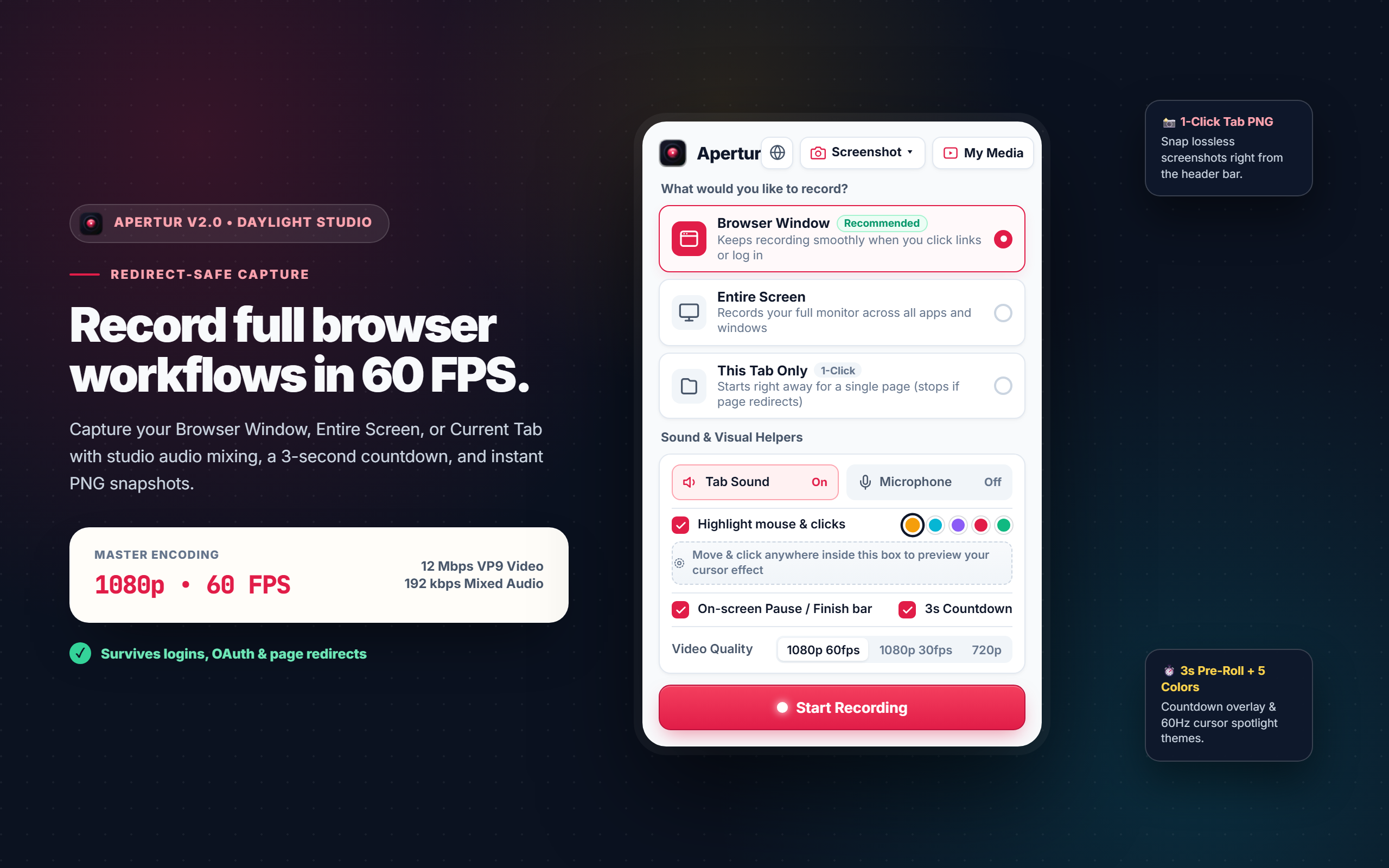
Most browser extensions crash or lose their recording controller the second you click a link that opens a new URL, logs in via OAuth, or redirects to a sub-domain. Apertur runs on Chrome Manifest V3 Offscreen Documents to keep recording smoothly.

1
Select Browser Window Mode

Open Apertur from your toolbar and select Browser Window (marked Recommended).

2
Position Your Cursor During 3s Countdown

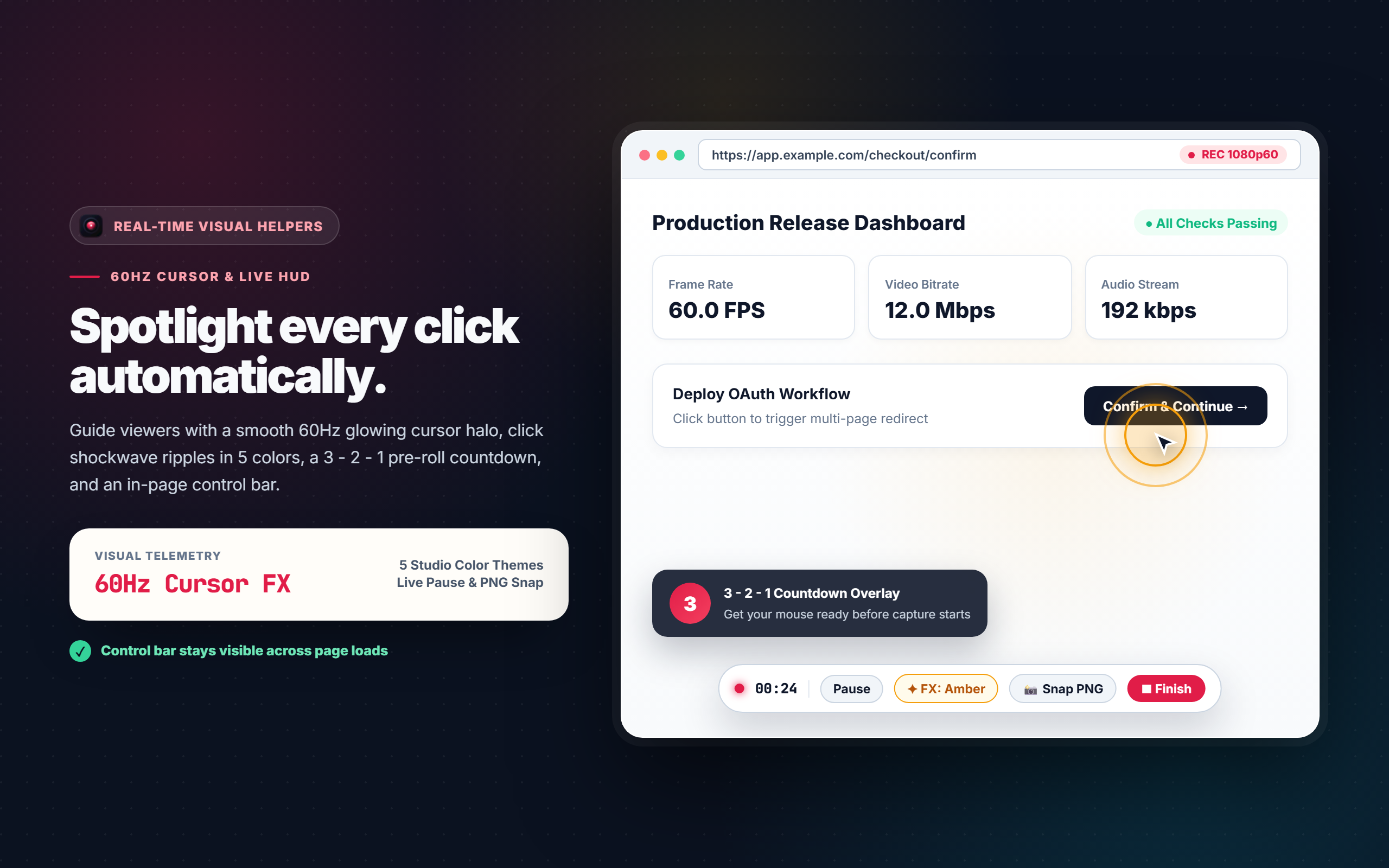
The optional animated 3, 2, 1 overlay gives you time to position your mouse before capture begins.

3
Navigate Freely

Your on-screen floating HUD automatically reconnects across every page and login screen.

PRO TIP: Need to demo full-screen terminal and code editor interactions alongside Chrome? Choose Entire Screen mode for monitor-wide 60 FPS recording.
https://app.saas.io/project
60 FPS REC
00:34 Snap Pause Finish
Live simulation: Floating HUD & Cursor FX re-attach across page redirects
MODULE 02 • SOUND & MICROPHONE

Hardware Audio Mixing & Live VU Level Meter

Record your voice alongside internal system audio with zero audio desync. Apertur mixes both audio sources into an ultra-clean 192 kbps Opus track with hardware noise reduction.

1
Microphone Device Selection

Toggle Microphone in the popup to choose between built-in laptop mics, USB headsets, or professional studio inputs.

2
Verify Levels with Real-Time VU Meter

Speak to confirm your audio before recording. A gradient meter (Green ➔ Amber ➔ Red) provides visual confidence.

3
Boost Quiet Microphones (50% to 200%)

Adjust the integrated Gain Boost slider to increase vocal volume without buying external audio interface hardware.

PRO TIP: Enable Noise Filter to automatically suppress air conditioner hum, laptop cooling fans, and room echo using WebRTC digital processing.
Microphone Setup & Monitoring Live input: Speaking detected
OPUS 192 KBPS
-36 dB -18 dB -6 dB 0 dB (PEAK)
Mic Gain Boost: 150%
Live simulation: Reactive VU volume meter confirms audio levels before you click record
MODULE 03 • SCREENSHOT STUDIO

Screenshot Annotation Studio: Arrows, Shapes & Callouts

Turn raw screenshots into clear bug reports and documentation. Click any screenshot in your Media Library and hit Annotate to unlock high-precision drawing tools directly in your browser.

✏️
Freehand PenSmooth curve drawing
↗️
Callout ArrowsPoint to bugs & buttons
🔲
Rectangle BoxesFrame UI components
🟡
HighlighterEmphasize key words
🔤
Text BadgesHigh-contrast callouts
↩️
Multi-Step UndoRevert edits anytime
PRO TIP: Click Save to Library to preserve all annotations in your offline vault, or click Copy Image to paste your marked-up PNG directly into GitHub or Slack.
Username / Email Input
⚡ Critical conversion CTA
Interactive demo: Automated vector stroke drawing and high-contrast text callouts
MODULE 04 • EDITING & EXPORT PRESETS

Built-In Video Trimmer & 4 Export Presets

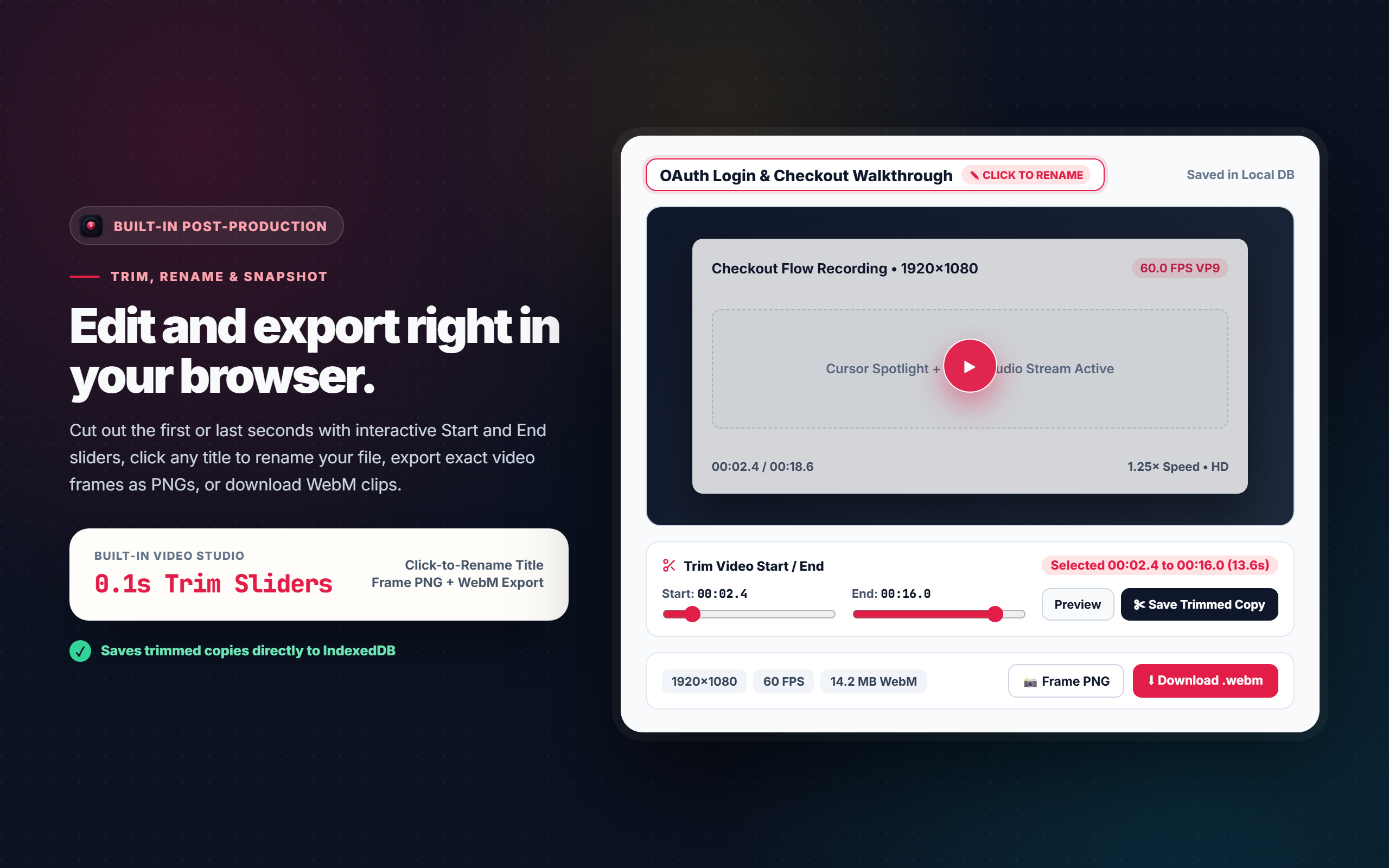
No need to open heavy video editing software just to cut out awkward delays or compress a clip. Apertur's Video Player Studio includes 0.1-second range trim sliders and 4 instant export presets.

🎬 Master 1080p (VP9 60fps) Full-quality master encoding at up to 12 Mbps for razor-sharp product walkthroughs.
🌐 Web-Ready 720p (Compact) Lightweight file under 25MB optimized for instant Slack, Discord, and email attachments.
🎵 Audio Only (WebM / Opus) Extracts crystal-clear voice and system audio tracks for podcasts, transcripts, or meeting notes.
🎞️ Short Animated Loop (WebM) Auto-clips a 5-second repeating loop ideal for GitHub README showcases and pull request demos.
PRO TIP: Click the video title in the player to rename your clip. The custom title automatically renames your downloaded files and persists in your local library.
Start: 00:01.2 Active Clip: 00:07.3 End: 00:08.5
Live simulation: 0.1s precision trim sliders and 1-click multi-format export
MODULE 05 • LOSSLESS SCREENSHOT SUITE

3 Capture Modes & Global Keyboard Shortcuts

Capture screenshots instantly from any web page without switching tabs or launching third-party apps.

Mode Global Shortcut Description
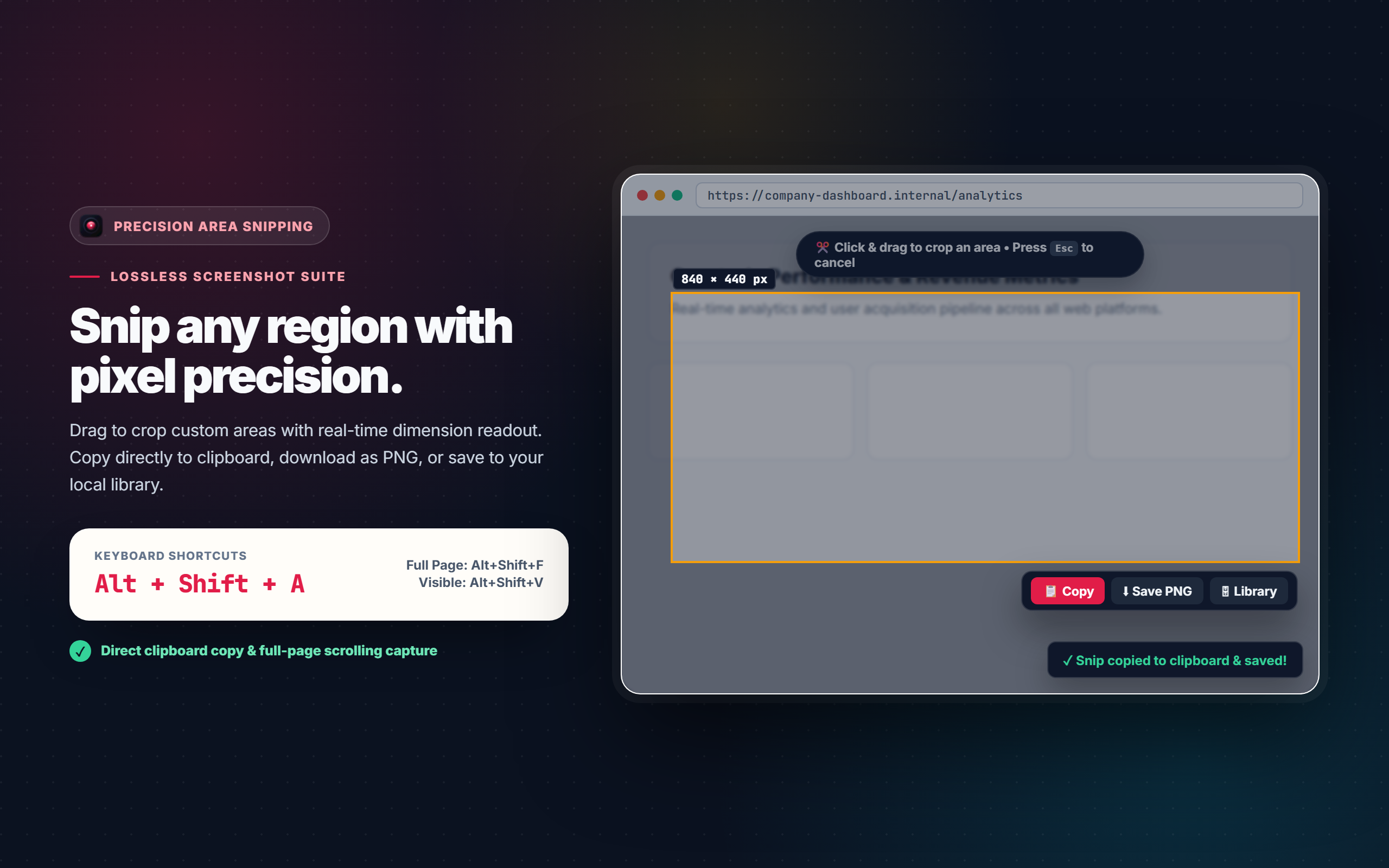
Area Crop (Snip) Alt+Shift+A Click & drag crosshairs to crop any rectangular area with live dimensions.
Full Webpage Alt+Shift+F Auto-scrolls and stitches entire long pages into one crystal-clear PNG.
Visible Viewport Alt+Shift+V Instant 1-click snapshot of the visible window with direct clipboard copy.
PRO TIP: Customize shortcuts anytime by typing chrome://extensions/shortcuts in your browser address bar.
840 × 440 px
Live simulation: Precision area snipping HUD with real-time dimensions and action bar
MODULE 06 • PRIVACY & LOCAL STORAGE

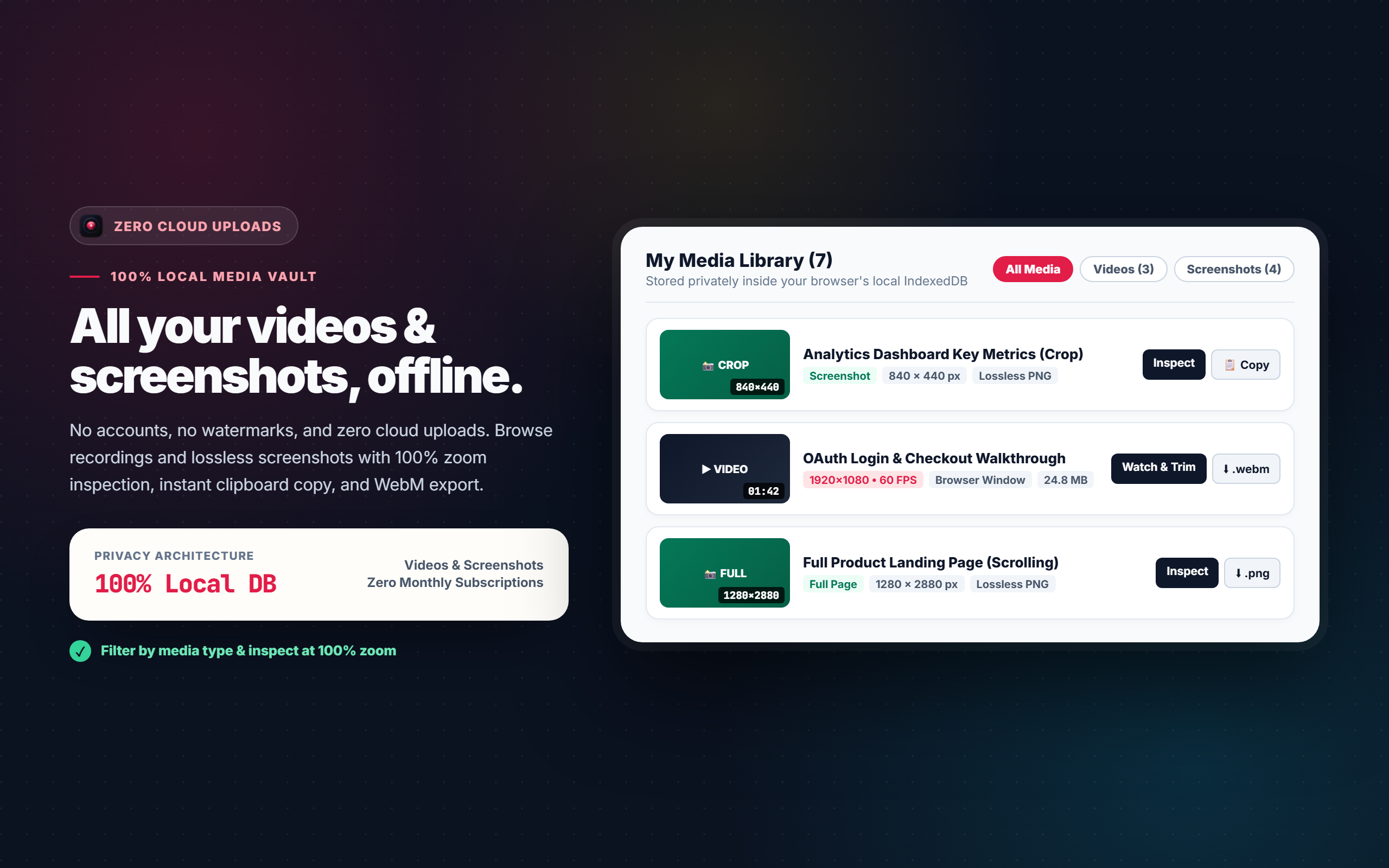
100% Private Offline Media Vault

Your screen recordings and screenshots contain sensitive internal dashboards, credentials, and client data. Apertur keeps 100% of your media on your computer inside IndexedDB.

1
Zero Cloud Uploads & Zero Telemetry

No third-party tracking, no external bandwidth bottlenecks, and no recurring storage subscription bills.

2
Unified Library with Category Filters

Filter your recordings and screenshots with All Media, Videos, and Screenshots pills.

3
100% Full-Resolution Inspection Viewer

Inspect tall full-page screenshots at native 1:1 pixel resolution with custom zoom toggle.

PRO TIP: Open your library at any time by clicking My Media in the extension popup or pressing the gallery button in the Video Player Studio.
All Media (8) Videos (5) Screenshots (3)
🔒 42.8 MB Stored Offline
▶ 00:45
Q4 Dashboard Demo.webm 1080p 60fps • 8.4 MB
PNG
Billing Settings Snip.png 1920 × 1080 • 420 KB
Live simulation: 100% offline IndexedDB vault with zero telemetry and zero cloud storage fees
SIMPLE 3-STEP WORKFLOW

How Apertur works in 3 easy steps.

No account sign-ups, no complex settings, and zero learning curve.

Step 1

Pick What to Record

Choose Browser Window (recommended for multi-page flows), Entire Screen, or This Tab Only.

Step 2

Record with Live Helpers

Navigate freely across pages while Apertur highlights your cursor clicks and mixes your microphone and tab audio at 60 FPS.

Step 3

Trim, Rename & Export

Click Finish on the floating bar. Rename your video, trim the start or end with built-in sliders, export frame PNGs, or download your .webm clip in one click.

BUILT FOR QUALITY & PRIVACY

Everything you need for studio product demos.

Engineered on Chrome Manifest V3 with hardware-accelerated encoding and a zero-scroll Daylight Studio UI.

Never Drops When You Click Links or Log In

Standard tab recorders stop or lose their control bar the moment a website redirects or opens a login page. Apertur's Browser Window mode keeps your recording and on-screen controls alive across every page navigation.

1080p 60 FPS + 3s Countdown

Hardware-accelerated VP9 video up to 12 Mbps with an optional 3, 2, 1 countdown overlay right after selecting your window so your mouse is ready.

60Hz Cursor & Click Highlights

Viewers easily follow every step thanks to a smooth glowing cursor halo and animated click ripples in 5 studio colors.

Built-In Video Trim & Rename

Cut out the first or last seconds using interactive Trim Start / End sliders in the player and click any video title to rename your saved and downloaded files.

Instant PNG Screenshots (3 Ways)

Snap full-resolution PNG screenshots from the popup header, directly from the floating recording bar mid-recording, or from any video frame in the player.

100% Private Local Video Library

Your screen recordings never get uploaded to a random cloud server. Every video stays privately inside your browser's local IndexedDB database with hover previews, custom titles, trimmed clip copies, and instant .webm file downloads.

OPEN SOURCE VS. SUBSCRIPTIONS

Stop paying $20/month to record your screen.

See why developers, educators, and teams switch to Apertur v2.0.

Feature Apertur v2.0 (Open Source) Cloud Recorders (Loom, etc.)
Price & License 100% Free (MIT License) $15 to $29 / month per user
Recording Length Limit Unlimited duration 5-minute limit on free plans
Privacy & Storage 100% Local on your device Uploaded to third-party cloud
Page Redirect & Login Survival Continuous + Auto Control Bar Often loses controls on redirect
Cursor Spotlight & Click Effects Included Free (5 Colors) Paid upgrade or unavailable
Built-In Video Trimmer & Rename Start / End Sliders + Inline Rename Often locked behind Pro tier
Lossless Screenshot Suite Area Crop (Alt+Shift+A), Full Webpage (Alt+Shift+F), Visible (Alt+Shift+V) Requires separate paid extensions
Media Vault & Full Zoom Unified Videos & Screenshots with 100% Zoom Viewer Limited cloud storage
Video Quality 1080p Full HD at 60 FPS Often compressed to 720p / 30 FPS
QUICK INSTALLATION

Install Apertur in 30 seconds.

Download the ready-to-load Release ZIP or build from source in Chrome, Brave, Edge, or Arc.

1
Download Release ZIP (or Build from Source)

Grab apertur-v2.0.0-chrome-extension.zip from GitHub Releases and unzip it, or run node build.js to generate dist/.

2
Open Extensions Page

Go to chrome://extensions and turn on Developer mode in the top-right corner.

3
Load Unpacked

Click Load unpacked and select the unzipped folder (or dist/ folder).

Terminal (Build from Source)
git clone https://github.com/tahsinsoyak/apertur.git
cd apertur
node build.js
FREQUENTLY ASKED QUESTIONS

Common questions about Apertur.

Everything you need to know about recording, trimming, screenshots, privacy, and open-source usage.

Which recording mode should I choose: Browser Window, Entire Screen, or This Tab Only?

We recommend Browser Window for almost all web recordings. Unlike single-tab capture, Browser Window mode continues recording smoothly when you click links, log in via OAuth, or navigate across different pages, and it automatically keeps your Pause/Finish bar visible.

How do I trim the start or end of a recording and rename the file?

When your recording finishes and opens in the Video Player Studio, use the Trim Start and Trim End sliders below the player to select the exact range you want to keep, then click Save Trimmed Copy. To rename any video, simply click the title or the pencil icon at the top of the player and press Enter. Your custom name is saved to IndexedDB and used automatically when downloading the .webm file.

How do the 3-way PNG screenshot tools work?

You can capture lossless PNG screenshots in three places: (1) click the camera icon in the top-right header of the extension popup to snap the active tab anytime, (2) click the camera button on the floating in-page control bar while recording a video, or (3) click Frame PNG inside the Video Player Studio to save the exact video frame currently on screen.

Where are my recorded videos saved? Are they uploaded to the cloud?

Your recordings are never uploaded to any external server. Every video is stored 100% locally inside your browser's private IndexedDB storage on your computer. You can watch them anytime in My Saved Videos or download them as standard .webm video files.

Can I record both website audio and my microphone voice at the same time?

Yes. Turn on both Tab Sound and Microphone in the Apertur popup before starting. Apertur mixes both audio streams in real time at studio-grade 192 kbps.